
Before you start
Install on the computer that will actually produce plates. That machine consumes one Production Licence when you activate it.
Nothing else needs installing first. Plate Software does not require a browser, a runtime or a local web server, and it does not open a localhost page.
Installing
- Download the installer and run it.
- Accept the licence agreement and choose an install location, or keep the default.
- Launch Plate Software when the installer finishes.
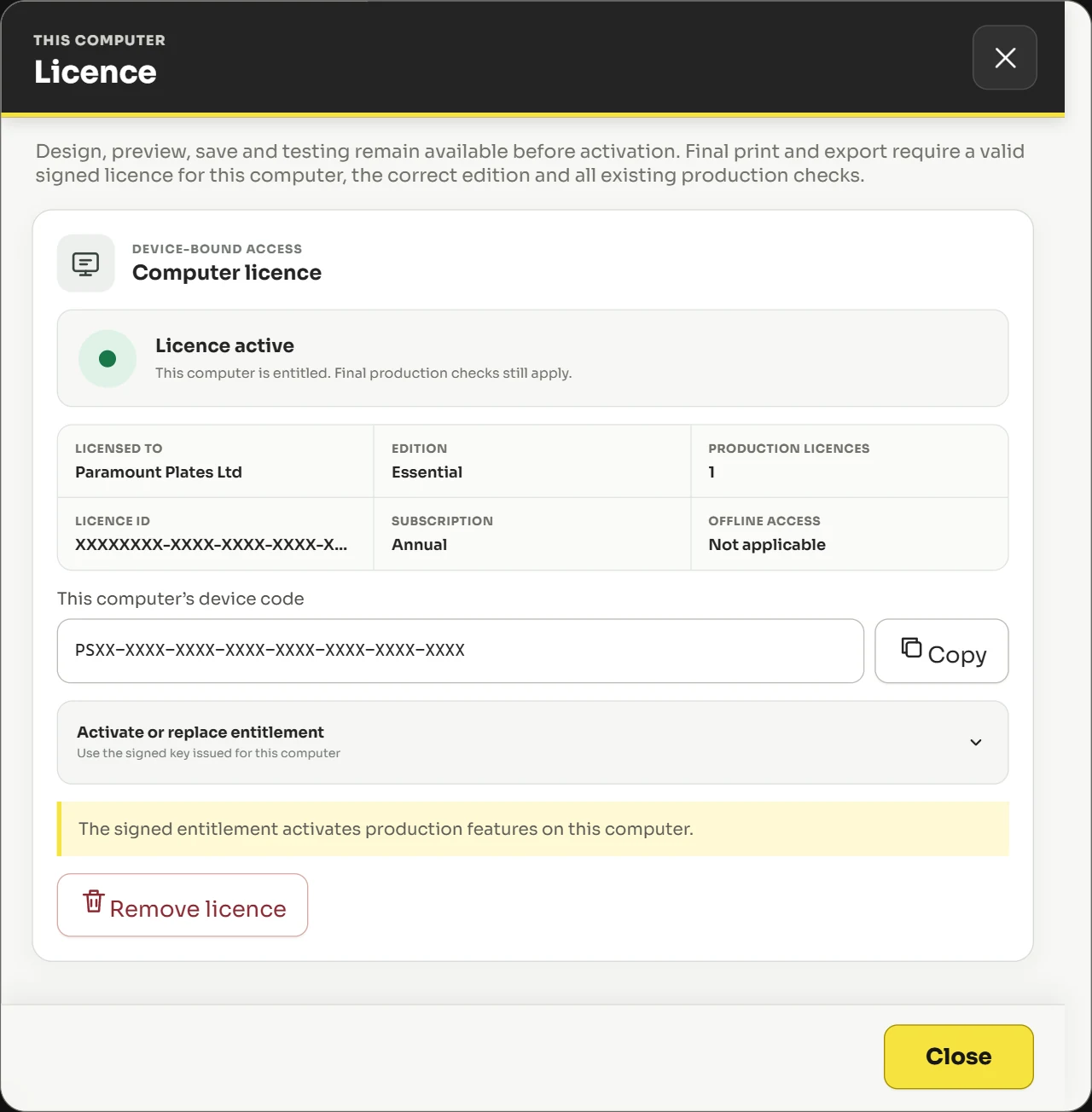
- Open Licence from the top bar and enter your business licence key with the email address it was issued to.
- Confirm the activation. The computer now holds one Production Licence.
Where your files live
Projects, templates, printer profiles and calibration values are stored locally on the machine. They are not uploaded anywhere.
Use Backup and restore before moving to a new computer, rebuilding a machine, or making significant changes to your templates.
Worth knowing. Uninstalling does not delete your projects. Back them up anyway before you rebuild a machine.
Did this not answer your question? Email support@platesoftware.co.uk and tell us what you were trying to do.